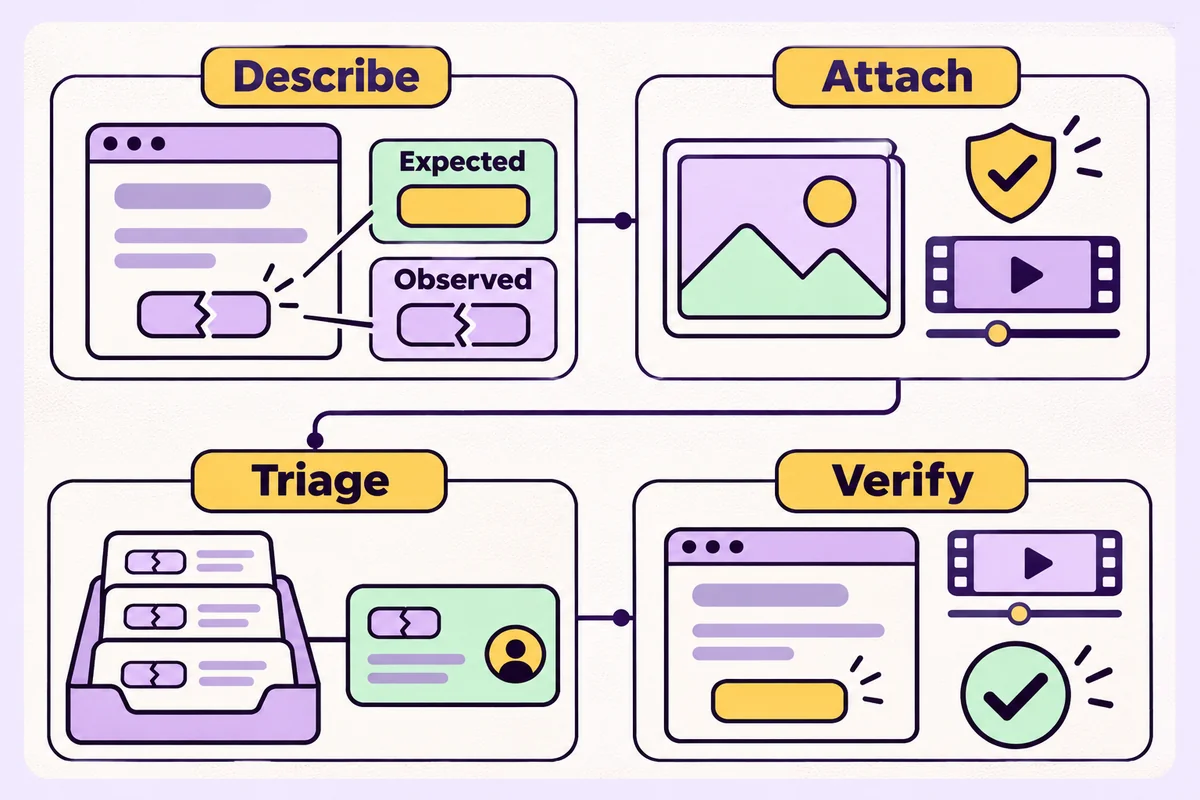
What should a website bug report include?
Put a feedback button near the workflow where a user might get stuck. Start with one required prompt, such as “What were you trying to do, and what happened?” Use the prompts below as helper text or follow-up questions. Let people include an email if they want a reply.
On Relay’s Starter and Business plans, you can also set a keyboard shortcut so someone can open the feedback widget from the page where the bug happened.
In an authenticated product, an account’s role or setup can be the difference between two otherwise identical reports. Ask for a role such as “workspace admin” and a page name such as “Settings → Members.” If a follow-up needs account details, use the support channel your team has approved for that information.
- Where were you? Name the page and feature. Leave out URL parameters containing account details or tokens.
- What did you do? List the shortest sequence you remember, including any relevant account role or setup.
- What did you expect? Describe the result a successful action would show.
- What happened? Record the visible error or behavior and how often it occurs.
- What device and browser were you using? Include these when the behavior may depend on the environment.
Choose evidence that answers a question
Use a screenshot when the issue is visible on a single screen, such as a clipped menu. Use a replay when the order of clicks, navigation, or form interactions matters. Use an activity timeline when a few labeled events can establish which action failed. Review the attachment and check that sensitive values are masked before sharing the report with a broader audience.
In Relay, the host site authorizes each diagnostic type. A rolling activity timeline or replay can buffer in the browser after authorization. The reporter can remove selected diagnostics before submitting. Screenshots are reconstructed from the page when requested and can omit elements such as video and iframes. The standalone form collects text.
On Starter and Business, filter console errors and allowed network requests alongside a replay. Request status and elapsed time help establish what happened at that point. You can also configure the widget to send a report for a selected error without waiting for someone to open the form.
Treat an attachment as an observation with limits. A screen capture can show which button was disabled. A replay can show which actions preceded it. Neither gives the engineer the deployment state or the exact conditions in the backend. Put those questions in the engineering issue so the owner can investigate them separately.
Example of an actionable bug report
A workspace admin reports that an invitation failed. The steps and observations below give engineering a starting point for recreating the failure with a test account.
The initial message, “Invites don’t work,” would have left several possibilities open. The improved report identifies a workspace role and a point of failure. If a test with the same role succeeds, the next comparison is the workspace configuration or the invitation state, such as whether the test address already has a pending invite.
- Page and setup — Settings → Members, signed in as a workspace admin.
- Steps — Open Invite teammate, enter a test email, and select Send invite.
- Expected — The dialog confirms that the invitation was sent.
- Observed — The dialog stays open and displays “Couldn’t send invite.” It happened on two attempts.
- Optional evidence — An authorized timeline recorded a 403 response to the invite action. Check the test user’s workspace role and the invitation service logs to narrow down the cause.
Give the report a triage outcome
Record what the team could confirm, who owns the next step, and when the report should be reviewed again. Send actionable reports to the connected issue tracker or board where the team works. Keep the original description intact and add the engineer’s observations separately. If the team cannot reproduce the problem, keep the untested conditions visible so a second report can narrow the search.
- Reproduced. Open or link an issue with the test environment, shortest reliable steps, and the user-facing behavior that needs to change.
- Needs a detail. Ask a targeted question, such as whether the error occurs before or after the confirmation screen. Use an approved contact method.
- Already tracked. Link the existing issue and call out any new evidence, including a newly affected role or a simpler way to reproduce it.
Turn the report into a triage decision
First try the reported steps on a test workspace with the same role. Search the inbox for reports with the same symptom and compare their steps before grouping them. If the issue is already tracked, link the new report and keep its original context available to the owner. If the report is missing a detail, ask one specific question, such as whether the person can invite teammates from a different workspace.
When the team confirms a fix, run the same steps with the same role and environment. Write the expected outcome into the engineering issue so someone else can verify the resolution. If the reporter shared an email and expects a reply, send a short update once the fix is available.
For the invitation example, verification means the admin sees a confirmation and the invitation appears as pending in the test workspace. A quick adjacent check can verify that a role without permission still receives the expected message. Record the build, role, and outcome so support knows what changed.
Which evidence should you ask for?
| Signal | Collect | What it answers |
|---|---|---|
| A clipped or missing control | An allowed screenshot and browser details | What did the reporter see, and at what screen size? |
| An error after several actions | Shortest written steps and an authorized replay when available | Which action or page transition triggered the failure? |
| An action failed without a clear message | The action name and an authorized activity timeline when available | Which request or event coincided with the failure? |
| Diagnostics are unavailable | Text, the exact error message, and the expected result | Can the team reproduce it with a test account? |