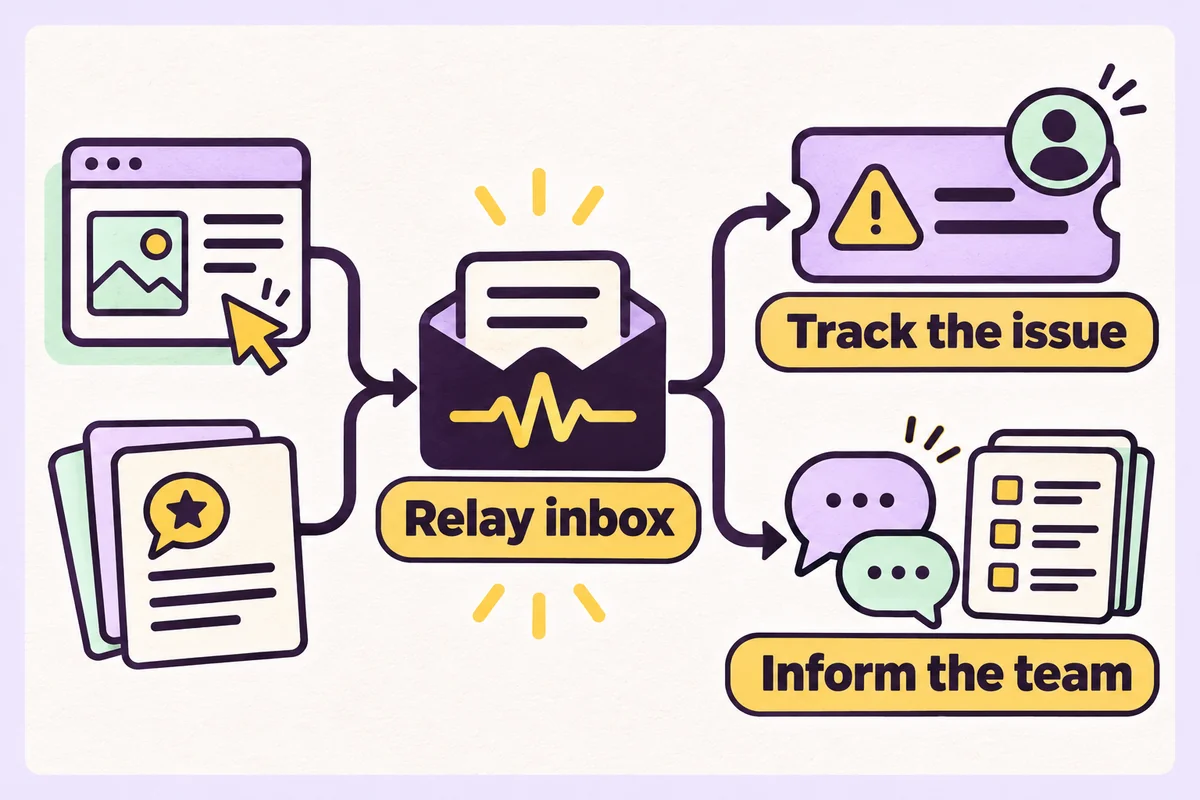
Decide what warrants a work item
Name a triage owner and agree on what earns an issue. A repeatable bug that blocks a customer task should reach the team that can investigate it. A feature request can stay in the inbox while you gather examples of the job users are trying to do. If you decide to act, write the desired outcome and give the issue an owner.
Before opening an issue, check for the same workflow, symptom, and expected behavior. Two reports that say “export fails” may describe different bugs if one gets an error and the other downloads a file with missing rows. A matching report can add a useful detail, such as the first affected browser or a second affected workflow.
Keep enough context in the issue for the owner to start work. A useful issue title identifies the affected action and symptom, such as “Transactions export returns an empty CSV for multi-page results.” In the description, record the steps, expected rows, and actual result, then point to the original report where your team can review it with the appropriate access.
- Create an issue when the team can take a specific next step and has no existing issue for that work.
- Add a report to an issue when it describes the same problem and offers evidence of impact or a way to reproduce it.
- Keep an open question in the inbox until a teammate can clarify the user’s goal or the conditions that trigger the problem.
Connect the tool where your team tracks work
In Relay’s Integrations settings, a workspace owner or admin can connect a destination available to the workspace. Choose the Jira project and issue type, GitHub repository, Linear team, or Trello board and list where the work belongs. Start by sending an individual report from its detail page.
Set up automatic delivery once you have checked how the destination handles new work and repeat feedback. Jira, GitHub, and Linear can use existing issues, with different matching and review options. Trello creates cards and can route categories to specific lists on the selected board. If a report could match several work items, have a triage owner review it before sending.
Test two descriptions of the same symptom and a third that uses similar wording for a different problem. Review the destination’s delivery result and confirm the intended audience can open the source report in Relay.
Choose notifications and automation
Use Slack or email for individual updates when people need to act promptly, or schedule a digest for routine review. Add Relay to the destination Slack channel before choosing it, or enter the intended email recipients. Slack also lets you send a report to an existing thread using its message link.
Use signed webhooks to send event notifications to a public HTTPS endpoint that you control, such as a receiver for your automation workflow. Subscribe to the events the workflow needs, verify Relay’s signature on the receiving side, and use a test event to check delivery. The notification includes a link to the event in Relay.
Assign someone to read incoming updates, decide which reports warrant an immediate notification, and set a time to review digests. When work starts, put its status in the work item so people can find it after the conversation moves on.
Example workflow for a broken CSV export
A customer reports that exporting more than one page of transactions returns an empty CSV. The triage owner opens a Jira issue with the affected page, the number of pages selected, and the expected rows. They post an individual update in Slack so support and engineering can coordinate.
Later, a second report specifies that the same export works when the date range returns a single page. The triage owner adds that report to the existing issue and follows up in the original thread. After engineering verifies the fix, support can contact reporters who provided an email for follow-up.
A team that uses GitHub and email can open an issue in the repository that owns exports and send the update to its support inbox. In either case, the work item tracks the fix and Relay holds the original description and evidence.
Test delivery before automating it
Submit three sample reports through the same widget or form customers will use. Include one new bug, one repeat with a new reproduction detail, and one feature request. Check the delivery result for each report and confirm that it arrived in the intended tool. Turn on automatic delivery once you know who will handle ambiguous matches and delivery failures.
- If you configured a widget shortcut on Starter or Business, open the form with it and check that the report reaches the intended Relay.
- Confirm the work item lands in the expected project, repository, team, or list.
- Confirm that the channel, inbox, or webhook receiver has the right audience and an owner.
- Where existing issue delivery is enabled, check that a repeat lands on the right issue and that someone reviews a conflicting match.
- Keep a note of where a report should go if a destination is unavailable or the wrong workspace is configured.
Choose a delivery path for each report
| Situation | Work item | Team update |
|---|---|---|
| New, reproducible problem | Create one issue with a clear owner and expected behavior. | Post individually if the team needs to act promptly. |
| Repeat with new evidence | Add the report to the existing issue and highlight the new detail. | Update the people already coordinating the response. |
| Promising feature request | Keep it in Relay until someone can define what to investigate. | Review it with related requests in a digest. |
| Ambiguous match | Have a reviewer compare the symptoms before choosing an issue. | Ask the team that owns the affected area to review it. |